
When Smartphones Slow Down: Understanding Performance Issues After Years of Use
Meta Description: Discover why smartphones slow down over time and learn proven strategies to restore performance. Expert tips for adults 50+ to keep phones running smoothly for years.
Keywords: smartphone slow down, phone performance issues, why phone slow, smartphone maintenance, phone optimization seniors

A confident woman in her 60s demonstrates that technology mastery has no age limit
Have you ever experienced the frustration of having a smartphone that used to work perfectly, only to find it becoming sluggish and unresponsive months or years later? You’re not alone. Smartphone slowdown is a common concern that affects millions of adults over 50, leaving them wondering why their once-speedy device has become a source of daily frustration.
In this comprehensive guide, we’ll explore the reasons behind smartphone performance decline, identify the warning signs, discuss prevention strategies, and outline what you can do to restore your phone’s speed. Whether you’re using an iPhone, Android, or any other smartphone, understanding the nature of performance issues can help you make informed decisions about your technology and keep your device running smoothly for years to come.
📱 Smartphone Performance Quick Assessment
Take this 2-minute assessment to check your phone’s health:
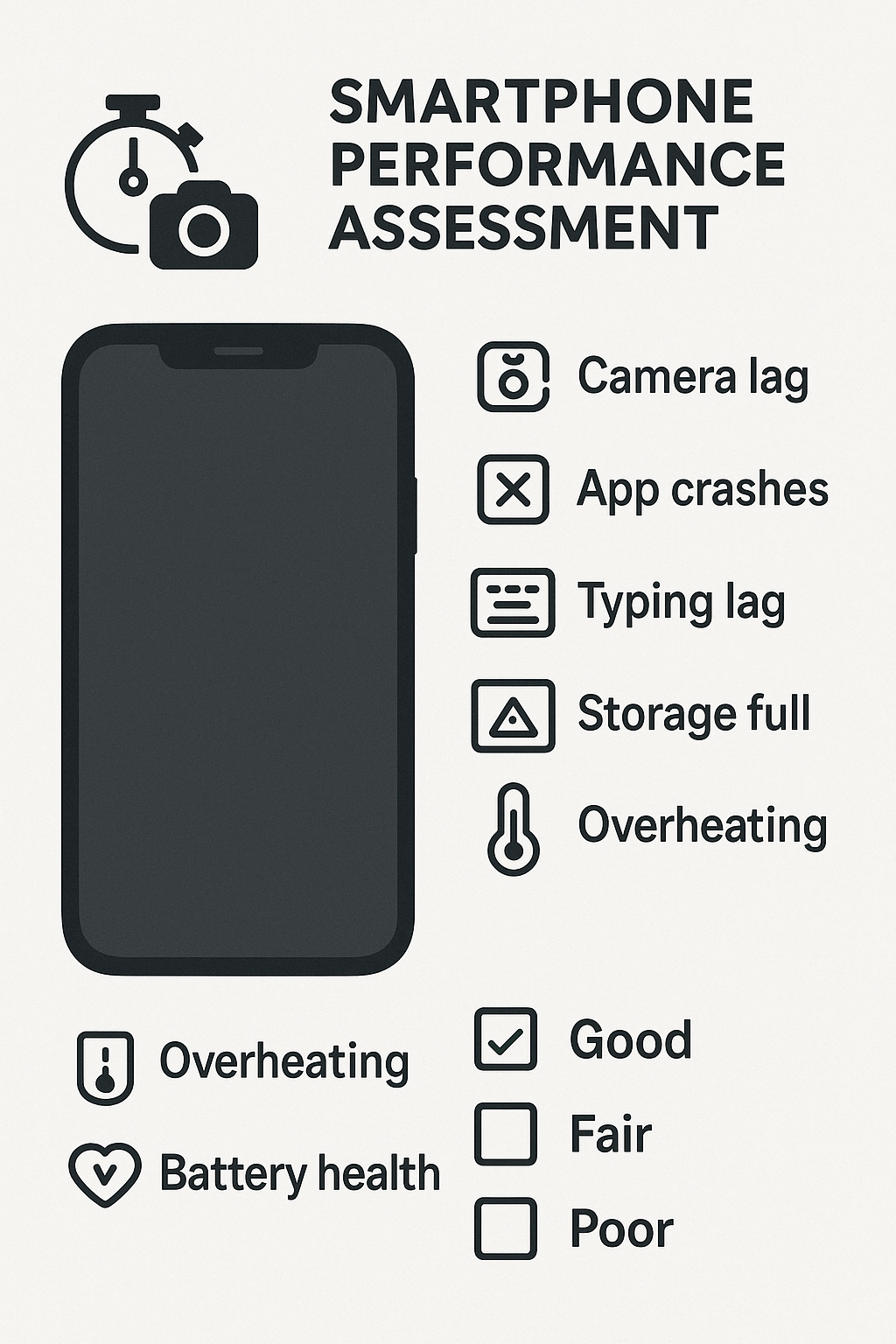
Use this checklist to evaluate your phone’s current performance level
Interactive Performance Calculator
Check all that apply to your phone:
Camera takes more than 3 seconds to open
Apps crash or freeze during normal use
Typing lags behind your finger movements
You see “storage full” warnings
Phone feels warm during basic tasks
Battery drains faster than 6 months ago
Phone is more than 3 years old
Available storage is below 2GB
Your Score:
•0-2 checked: Your phone is performing well ✅
•3-4 checked: Minor issues, preventive action recommended ⚠️
•5-6 checked: Moderate slowdown, optimization needed 🔧
•7+ checked: Significant problems, professional help recommended 🆘
Why Do Smartphones Slow Down Over Time? 🤔
Smartphone slowdown can be incredibly frustrating, especially when you rely on your device for staying connected with family, managing your health, and navigating daily life. Here are the primary reasons smartphones lose their speed and responsiveness over time:
1. Storage Space Depletion
The most common reason for smartphone slowdown is running out of available storage space on your device.
“Think of your phone’s storage like a closet. When it’s packed to the brim, it becomes nearly impossible to find what you need quickly. Your phone works the same way – when storage is full, everything slows down.”- Mobile Technology Expert
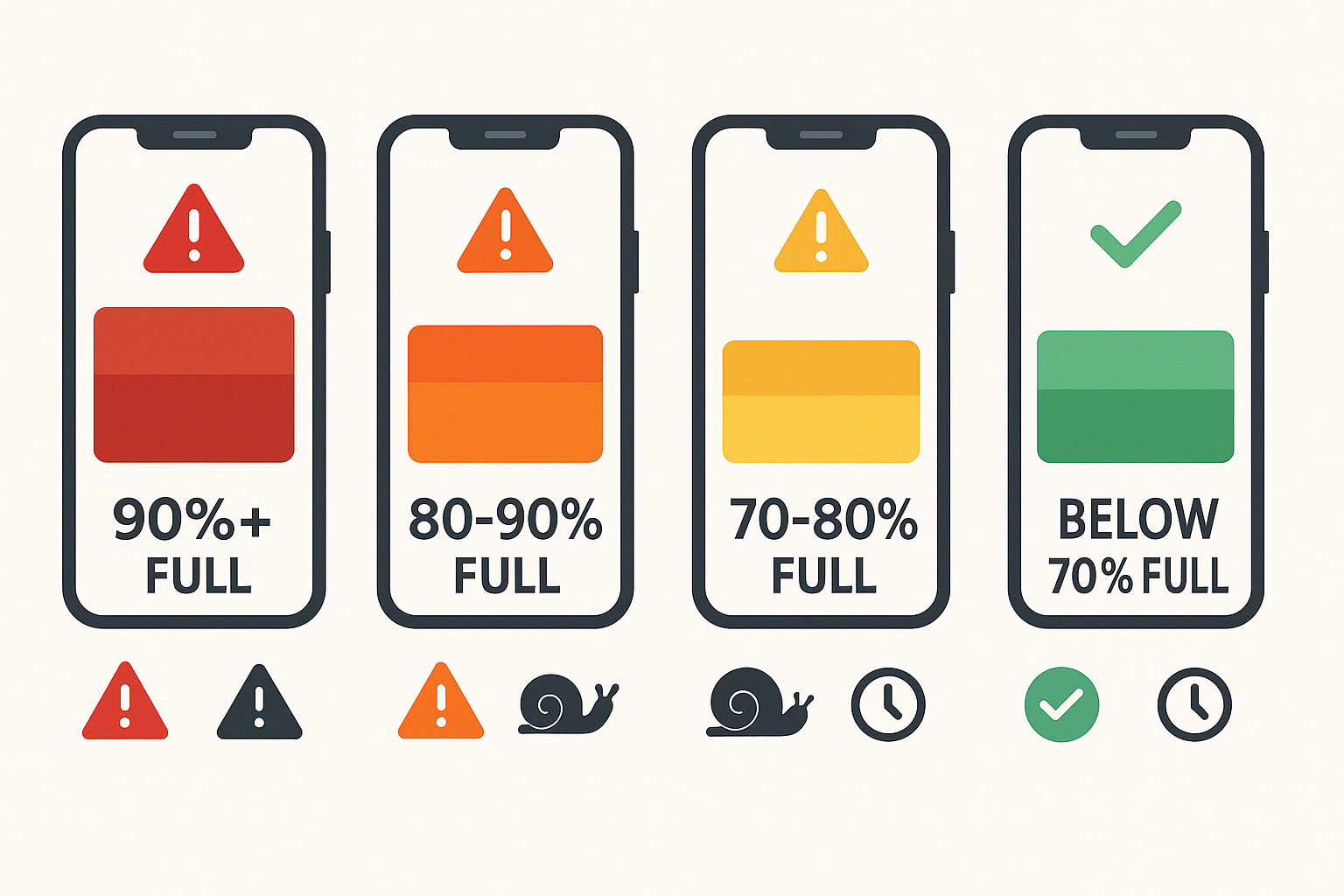
Visual guide showing how storage levels affect your phone’s performance
Modern smartphones need free space to operate efficiently. When storage becomes critically low (typically below 10-15% of total capacity), your phone struggles to:
•Cache temporary files needed for smooth app operation
•Process photos and videos you capture
•Download app updates that improve performance
•Store system files required for basic functions
Storage Impact Comparison
| Storage Level | Performance Impact | User Experience |
| 90%+ Full | Severe slowdown | Apps crash frequently, camera won’t work |
| 80-90% Full | Moderate slowdown | Noticeable delays, some apps struggle |
| 70-80% Full | Mild slowdown | Occasional hiccups, generally manageable |
| Below 70% Full | Optimal performance | Smooth operation, responsive interface |
2. App Accumulation and Background Activity
Over time, we naturally accumulate dozens of apps on our smartphones, many of which continue running in the background even when we’re not actively using them.
Background App Activity Monitor
Common Background Activities That Slow Your Phone:
•🔵 Social media apps – Constantly checking for updates
•📧 Email applications – Syncing messages every few minutes
•🌤️ Weather apps – Updating location-based forecasts
•📰 News applications – Downloading articles and notifications
•🎮 Gaming apps – Maintaining online connections
•💪 Fitness trackers – Monitoring steps and health data
Each background app consumes precious system resources – memory, processing power, and battery life. When too many apps compete for these limited resources, your entire phone becomes sluggish and unresponsive.
3. Operating System Updates and Feature Creep
While software updates are essential for security and new features, they can sometimes make older phones feel slower than before.
Update Impact Timeline
Why Updates Can Slow Down Older Phones:
•New features require more processing power than older hardware can efficiently handle
•Enhanced graphics and animations demand more from aging processors
•Increased security measures add extra steps to routine operations
•Compatibility layers help new software work on old hardware, but with performance costs
•Background optimization processes run after updates, temporarily slowing the device
Important Note: Don’t avoid updates – they’re crucial for security. However, understanding this trade-off helps explain why your three-year-old phone might feel slower after the latest update.
4. Hardware Degradation and Battery Aging
Like any electronic device, smartphone components naturally degrade over time, affecting overall performance.
Hardware Health Indicators
Physical Components That Affect Speed:
🔋 Battery Degradation:
•Lithium-ion batteries lose capacity after 300-500 charge cycles
•Degraded batteries can’t provide consistent power to the processor
•Phones automatically reduce performance to prevent unexpected shutdowns
•Battery health below 80% significantly impacts performance
💾 Flash Storage Wear:
•Storage chips have limited read/write cycles
•Frequent use gradually reduces storage speed
•Older storage becomes less efficient at data retrieval
•This affects app loading times and file access
🌡️ Thermal Management:
•Older phones may struggle with heat dissipation
•Overheating triggers automatic performance throttling
•Dust accumulation in ports and speakers affects cooling
•Extended use in hot environments accelerates degradation
🔍 Smartphone Slowdown Risk Calculator
Interactive Risk Assessment Tool
Personal Risk Factors
Check all that apply to calculate your phone’s slowdown risk:
High-Risk Factors (3 points each):
Phone is 4+ years old
Battery health below 80%
Storage consistently above 85% full
Heavy daily usage (6+ hours screen time)
Frequently use resource-intensive apps (games, video editing)
Moderate-Risk Factors (2 points each):
Phone is 2-3 years old
Storage often above 75% full
Moderate daily usage (3-6 hours screen time)
Rarely restart your phone
Many apps installed (50+)
Low-Risk Factors (1 point each):
Phone is 1-2 years old
Regular maintenance habits
Light to moderate usage
Keep storage below 70% full
Regular app cleanup
Your Risk Score:
•0-5 points: Low risk – Continue current habits ✅
•6-10 points: Moderate risk – Implement prevention strategies ⚠️
•11-15 points: High risk – Take immediate action 🔧
•16+ points: Critical risk – Consider professional help or replacement 🆘
📊 Performance Optimization Timeline
Week 1-2: Quick Wins
•Daily: Close background apps after use
•Every 3 days: Restart your phone
•Weekly: Delete unnecessary photos and videos
•Monitor: Available storage space
Month 1: Deep Cleaning
•Week 1: Uninstall unused apps
•Week 2: Clear app caches and data
•Week 3: Organize photos into cloud storage
•Week 4: Review and optimize settings
Month 2-3: Habit Formation
•Establish: Weekly maintenance routine
•Monitor: Battery health and charging habits
•Optimize: Background app refresh settings
•Evaluate: Overall performance improvements
Month 4+: Long-term Maintenance
•Monthly: Deep storage cleanup
•Quarterly: Performance assessment
•Annually: Consider hardware upgrades
•Ongoing: Stay informed about best practices
🛠️ Step-by-Step Troubleshooting Guide
Level 1: Quick Fixes (Try First – 5 minutes)
Restart Your Phone
iPhone Users:
1.Hold power button + volume button until slider appears
2.Slide to power off
3.Wait 30 seconds
4.Press power button to restart
Android Users:
1.Hold power button for 10 seconds
2.Select “Restart” from menu
3.Wait for complete reboot
Why This Works: Clears temporary files and refreshes system memory
Close Background Apps
iPhone Users:
1.Double-tap home button (or swipe up from bottom on newer models)
2.Swipe up on app cards to close them
3.Focus on social media, games, and streaming apps
Android Users:
1.Tap recent apps button (square or three lines)
2.Swipe away unwanted apps
3.Use “Close All” if available
Check Available Storage
iPhone Users:
•Settings > General > iPhone Storage
•Target: Keep at least 1GB free
Android Users:
•Settings > Storage or Device Care > Storage
•Target: Keep at least 2GB free
Level 2: Intermediate Solutions (15-30 minutes)
Storage Cleanup Strategy
Photo and Video Management:
1.Backup to cloud: Google Photos, iCloud, or Dropbox
2.Delete duplicates: Use built-in tools or apps like Gemini Photos
3.Remove screenshots: Often forgotten but take up significant space
4.Clear downloads: Browser downloads, email attachments
App Management:
1.Uninstall unused apps: If you haven’t used it in 3 months, delete it
2.Clear app caches: Android: Settings > Apps > [App Name] > Storage > Clear Cache
3.Offload apps: iPhone: Settings > General > iPhone Storage > Offload Unused Apps
Update Management
Check for Updates:
•iOS: Settings > General > Software Update
•Android: Settings > Software Update or System Update
App Updates:
•iPhone: App Store > Profile > Update All
•Android: Google Play Store > Menu > My apps & games > Update All
Level 3: Advanced Solutions (1-2 hours)
Factory Reset (Last Resort)
Before You Begin:
•✅ Backup all photos, contacts, and important data
•✅ Write down important app login information
•✅ Ensure you know your Apple ID/Google account password
iPhone Reset:
1.Settings > General > Reset > Erase All Content and Settings
2.Follow setup wizard
3.Restore from backup or set up as new
Android Reset:
1.Settings > System > Reset Options > Erase All Data
2.Follow setup process
3.Restore apps selectively
🎯 Prevention Strategies for Long-Term Performance
Daily Habits (2 minutes)
•Close apps after intensive use (games, video calls)
•Check storage when taking many photos
•Avoid extreme temperatures while using phone
•Use original chargers when possible
Weekly Maintenance (10 minutes)
•Restart phone every Sunday
•Delete unnecessary photos and videos
•Clear browser cache and downloads
•Review app notifications and disable unnecessary ones
Monthly Deep Clean (30 minutes)
•Uninstall unused apps
•Clear messaging app media
•Backup photos to cloud
•Check battery health
•Review storage usage by app
Quarterly Health Check (1 hour)
•Comprehensive storage audit
•App permission review
•Security settings update
•Performance benchmark test
•Consider professional cleaning
🔄 When to Consider Upgrading
Clear Upgrade Indicators
Performance-Based Signs:
•Phone is 4+ years old and consistently slow despite optimization
•Battery lasts less than half a day with normal use
•Apps crash multiple times daily
•Phone overheats during basic tasks like texting or calling
•Storage management becomes a weekly necessity
Security and Support Issues:
•Manufacturer no longer provides security updates
•Your phone can’t run essential apps due to OS limitations
•Banking or health apps no longer support your device
•Missing important accessibility features you need
Lifestyle Changes:
•Your vision has changed and you need a larger screen
•Hearing difficulties require better speaker quality
•Mobility issues make a lighter phone necessary
•New health monitoring features would benefit your wellbeing
Smart Upgrade Strategy
For Adults 50+, Prioritize:
•📱 Larger screens (6+ inches) for easier reading
•🔧 Simplified interfaces like iPhone’s accessibility features
•📸 Excellent cameras for capturing family moments
•🔋 Long battery life to reduce charging frequency
•🆘 Strong customer support for when you need help
Budget-Friendly Options:
•Previous generation flagship phones offer excellent value
•Mid-range devices from reputable manufacturers (Samsung Galaxy A-series, iPhone SE)
•Carrier deals often include trade-in credits
•Certified refurbished phones from manufacturers
💡 Technology Confidence Building
Overcoming Tech Anxiety
Remember, experiencing smartphone slowdown doesn’t reflect your technical abilities – it’s a normal part of device ownership that affects users of all ages. The key is understanding why it happens and knowing how to address it.
Building Your Tech Confidence:
•🎯 Start small: Master one optimization technique at a time
•🤝 Ask for help: Family members, friends, or store employees are usually happy to assist
•🔄 Practice regularly: Monthly maintenance becomes second nature with repetition
•📚 Stay curious: Technology changes, but basic principles remain consistent
•⏰ Be patient: Learning new skills takes time, regardless of age
Learning Resources
Free Educational Resources:
•📚 Manufacturer websites: Apple Support, Samsung Members, Google Support
•🏛️ Local libraries: Often provide free technology classes
•🏠 Senior centers: May offer smartphone workshops
•📺 YouTube channels: “Tech for Seniors,” “Senior Planet,” “AARP Tech”
•👨👩👧👦 Family training: One-on-one help from tech-savvy relatives
Professional Support Options:
•🏪 Carrier stores: Verizon, AT&T, T-Mobile offer free basic training
•🍎 Apple Stores: Free Today at Apple sessions
•🛠️ Best Buy: Geek Squad services for seniors
•🏠 In-home services: Tech support that comes to you
📈 Measuring Your Success
Performance Improvement Tracking
Week 1 Baseline:
•Note current app opening times
•Record available storage space
•Document battery life duration
•List frequent problems
Week 4 Progress Check:
•Compare app responsiveness
•Measure storage improvement
•Assess battery performance
•Count problem frequency
Month 3 Evaluation:
•Overall satisfaction rating (1-10)
•Confidence level with phone use
•Frequency of frustration incidents
•Willingness to try new features
Success Indicators
You’ll Know You’re Succeeding When:
•✅ Apps open quickly and smoothly
•✅ You rarely see storage warnings
•✅ Battery lasts through your typical day
•✅ You feel confident using your phone
•✅ Technology enhances rather than frustrates your life
🎉 Conclusion: Taking Control of Your Technology
Smartphone slowdown is a universal experience that doesn’t have to be a source of frustration or embarrassment. By understanding the four main causes – storage depletion, app accumulation, software updates, and hardware aging – you can take proactive steps to maintain your device’s performance and extend its useful life.
The strategies outlined in this guide aren’t just technical fixes; they’re empowerment tools that help you take control of your technology rather than feeling controlled by it. Whether you’re optimizing your current phone or preparing to choose a new one, remember that you have the wisdom and patience to master these skills at your own pace.